Captcha Control In Asp.net
Hi Friends,
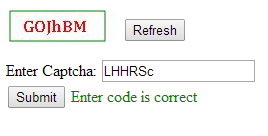
Here i will explain you
how to implement captcha control in asp.net.
ON ASPX PAGE :-
Paste below Script in your form tag.
<div>
<asp:ScriptManager ID="ScriptManager1" runat="server">
</asp:ScriptManager>
<asp:UpdatePanel ID="UpdatePanel1" runat="server">
<ContentTemplate>
<table>
<tr>
<td style="height: 50px; width: 100px;">
<asp:Image ID="imgCaptcha" runat="server" />
</td>
<td valign="middle">
<asp:Button ID="btnRefresh" runat="server" Text="Refresh" OnClick="btnRefresh_Click" />
</td>
</tr>
</table>
</ContentTemplate>
</asp:UpdatePanel>
Enter Captcha:
<asp:TextBox ID="txtCaptcha" runat="server"></asp:TextBox><br />
<asp:Button ID="btnSubmit" runat="server" Text="Submit" OnClick="btnSubmit_Click" />
<asp:Label ID="lblmsg" runat="server"></asp:Label>
</div>
ON CODE BEHIND ASPX.CS :-
using System;
using System.Collections.Generic;
using System.Linq;
using System.Web;
using System.Web.UI;
using System.Web.UI.WebControls;
using System.Text;
using System.Drawing.Imaging;
protected void Page_Load(object sender, EventArgs e)
{
if (!IsPostBack)
{
FillCaptcha();
}
}
public void FillCaptcha()
{
try
{
Random random = new Random();
string combination = "0123456789ABCDEFGHIJKLMNOPQRSTUVWXYZabcdefghijklmnopqrstuvwxyz";
StringBuilder captcha = new StringBuilder();
for (int i = 0; i < 6; i++)
captcha.Append(combination[random.Next(combination.Length)]);
Session["captcha"] = captcha.ToString();
imgCaptcha.ImageUrl = "GenerateCaptcha.aspx";
}
catch
{
throw;
}
}
protected void btnRefresh_Click(object sender, EventArgs e)
{
FillCaptcha();
}
protected void btnSubmit_Click(object sender, EventArgs e)
{
if (Session["captcha"].ToString() != txtCaptcha.Text)
{
lblmsg.ForeColor = System.Drawing.Color.Red;
lblmsg.Text = "Enter Valid Captcha Code";
}
else
{
lblmsg.ForeColor = System.Drawing.Color.Green;
lblmsg.Text = "Enter code is correct";
}
FillCaptcha();
}
Add one new aspx page GenerateCaptcha.aspx
On code behind
using System;
using System.Collections.Generic;
using System.Linq;
using System.Web;
using System.Web.UI;
using System.Web.UI.WebControls;
using System.IO;
using System.Drawing;
using System.Drawing.Drawing2D;
using System.Drawing.Imaging;
protected void Page_Load(object sender, EventArgs e)
{
Response.Clear();
int height = 40;
int width = 110;
Bitmap bmp = new Bitmap(width, height);
RectangleF rectf = new RectangleF(12, 6, 0, 0);
Graphics g = Graphics.FromImage(bmp);
g.Clear(Color.White);
g.SmoothingMode = SmoothingMode.AntiAlias;
g.InterpolationMode = InterpolationMode.HighQualityBicubic;
g.PixelOffsetMode = PixelOffsetMode.HighQuality;
g.DrawString(Session["captcha"].ToString(), new Font("Cambria", 13, FontStyle.Bold), Brushes.Red, rectf);
g.DrawRectangle(new Pen(Color.Green), 1, 1, width - 15, height - 10);
g.Flush();
Response.ContentType = "image/jpeg";
bmp.Save(Response.OutputStream, ImageFormat.Jpeg);
g.Dispose();
bmp.Dispose();
}
Grid View Progress Bar Using Jquery.
Hi Friends,
Here i will explain you
how to implement Grid View Progress Bar Using Jquery.
ON ASPX PAGE :-
Paste below Script in your head tag.
<script type="text/javascript" src="http://code.jquery.com/jquery-1.8.2.js"></script>
<script type="text/javascript">
$(function () {
$('#btnClick').click(function () {
$('#Div').fadeTo('slow', .2);
$('#Div').append('<img src="../Images/animated.gif" style="background-color:Aqua;position:fixed; top:20%; left:16%;"/></div>');
setTimeout(function () { GetData() }, 800)
})
});
function GetData() {
$.ajax({
type: "POST",
contentType: "application/json; charset=utf-8",
url: "JqueryProgressBar.aspx/filldatagrid",
data: "{}",
dataType: "json",
success: function (data) {
var theHtml = data.d;
$('#Griddiv').html(theHtml)
$('#Div').html("");
},
error: function (result) {
alert("Error");
}
});
}
</script>
Paste below code in form tag.
<div id="Div">
</div>
<input type="button" id="btnClick" value="GridView" />
<div id="Griddiv">
</div>
ON CODE BEHIND ASPX.CS :-
[WebMethod]
public static string filldatagrid()
{
GridView gv = new GridView();
System.IO.StringWriter stringWriter = new System.IO.StringWriter();
HtmlTextWriter htmlWriter = new HtmlTextWriter(stringWriter);
DataSet ds = manager.GetRecords();//Function for getting records
DataTable dt = ds.Tables[0];
gv.DataSource = dt;
gv.DataBind();
gv.RenderControl(htmlWriter);
return stringWriter.ToString();
}
CREATE A STORED PROCEDURE :-
CREATE PROCEDURE [dbo].[usp_SelectRegistration]
AS
BEGIN
SELECT Pid ,FullName,CONVERT(varchar(30),DOB,101) AS DOB,Gender
FROM form Order by Pid
END
ON BUSINESS LAYER MANAGER CLASS :-
On your bussiness layer paste code below
public static DataSet GetRecords()
{
return BusinessLayer.Dataaccess.DataAccess.GetData("usp_SelectRegistration", null);
}
//usp_SelectRegistration is stored procedure name
//DataAccess is class in dataaccess layer
//GetData is function for getting data using connection string
ON DATAACCESS LAYER :-
public static DataSet GetData(string SPName, List<SqlParameter> Parameters)
{
using (SqlConnection con = new
SqlConnection(System.Configuration.ConfigurationManager.ConnectionStrings["ApplicationServices"].ConnectionString))
{
using (SqlCommand cmd = new SqlCommand())
{
cmd.CommandText = SPName;
cmd.CommandType = System.Data.CommandType.StoredProcedure;
cmd.Connection = con;
if (Parameters != null)
{
foreach (SqlParameter parameter in Parameters)
{
cmd.Parameters.Add(parameter);
}
}
con.Open();
DataSet ds = new DataSet();
SqlDataAdapter da = new SqlDataAdapter();
da.SelectCommand = cmd;
da.Fill(ds);
con.Close();
return ds;
}
}
}
ON WEB.CONFIG :-
Now add connection string in your webconfig,add code below..
<connectionStrings>
<add name="ApplicationServices" connectionString="Data
Source=10.1.1.1;Initial Catalog=DailyTaskoskar;Persist Security
Info=True;User ID=Username;Password=Password"
providerName="System.Data.SqlClient"/>
</connectionStrings>
Grid View Paging And Sorting And Showing Ascending And Descending Sorting Arrow Image with Header text In ASP.NET
Hi Friends,
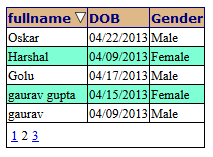
Here i will explain you how to implement Grid View Paging And Sorting And Showing Ascending And Descending Sorting Arrow Image with Header text In ASP.NET .
First of all create a table name it form
Add some entries in form table
ON ASPX PAGE :-
In between header paste
<style type="text/css">
th a
{
text-decoration: none;
}
.PagerControl
{
text-decoration: none;
}
</style>
In between form tage paste code below
<asp:GridView ID="GridView1" runat="server" AutoGenerateColumns="false"
AllowPaging="true" PageSize="5" OnSorting="GridView1_Sorting" OnRowDataBound="GridView1_RowDataBound"
AllowSorting="true" OnPageIndexChanging="GridView1_PageIndexChanging" HeaderStyle-Font-Names="Verdana"
Font-Size="Small" HeaderStyle-HorizontalAlign="Left" HeaderStyle-Font-Underline="false"
HeaderStyle-BackColor="BurlyWood" HeaderStyle-ForeColor="Navy">
<AlternatingRowStyle BackColor="Aquamarine" />
<PagerStyle CssClass="PagerControl"/>
<Columns>
<asp:BoundField DataField="fullname" HeaderText="fullname" SortExpression="fullname" />
<asp:BoundField DataField="DOB" HeaderText="DOB" SortExpression="DOB" />
<asp:BoundField DataField="Gender" HeaderText="Gender" SortExpression="Gender" />
</Columns>
</asp:GridView>
ON CODE BEHIND ASPX.CS :-
Add namespaces
using System;
using System.Collections.Generic;
using System.Collections.Specialized;
using System.Linq;
using System.Web;
using System.Web.UI;
using System.Web.UI.WebControls;
using System.Data;
using System.Data.SqlClient;
using System.Data.SqlTypes;
using BusinessLayer.Entity;
using BusinessLayer.Manager;
using BusinessLayer.Dataaccess;
using System.Drawing;
using System.Text;
using System.IO;
using System.Drawing.Imaging;
# region Sorting
public string sortingOrder
{
get
{
if (ViewState["sortingOrder"] == null)
{
ViewState["sortingOrder"] = "desc";
}
return ViewState["sortingOrder"].ToString();
}
set
{
ViewState["sortingOrder"] = value;
}
}
public string SortColumn
{
get
{
return (ViewState["SortColumn"] == null ? "fullname" : ViewState["SortColumn"].ToString());
}
set
{
ViewState["SortColumn"] = value;
}
}
public SortDirection sortDirection
{
get
{
if (ViewState["sortDirection"] == null)
{
ViewState["sortDirection"] = SortDirection.Ascending;
}
return (SortDirection)ViewState["sortDirection"];//.Descending;
}
set
{
ViewState["sortDirection"] = value;
}
}
#endregion
protected void Page_Load(object sender, EventArgs e)
{
if (!IsPostBack)
{
fillDataGrid();
}
}
public void fillDataGrid()
{
DataSet ds = manager.GetRecords();//function for getting records from database written on bussiness layer manager.
DataTable dt = ds.Tables[0];
if (ds.Tables[0].Rows.Count == 0)
{
GridView1.DataSource = null;
GridView1.DataBind();
}
else
{
DataView dv1 = new DataView(dt);
dv1.Sort = SortColumn + " " + sortingOrder;
GridView1.DataSource = dv1;
GridView1.DataBind();
GridView1.HeaderRow.Font.Underline = false;
}
}
protected void GridView1_Sorting(object sender, GridViewSortEventArgs e)
{
if (sortDirection == SortDirection.Descending)
{
sortDirection = SortDirection.Ascending;
}
else
{
sortDirection = SortDirection.Descending;
}
sortingOrder = (sortDirection == SortDirection.Descending) ? "asc" : "desc";
SortColumn = e.SortExpression;
fillDataGrid();
}
protected void GridView1_RowDataBound(object sender, GridViewRowEventArgs e)
{
string AscGvDeleteRecdords = @" <img src='../Images/white-triangle-up.png' Width='11px' Height='11px' title='Ascending' />";
string DesGvDeleteRecdords = @" <img src='../Images/white-triangle-down.png'Width='11px' Height='11px' title='Descendng' />";
if (e.Row.RowType == DataControlRowType.Header)
{
foreach (TableCell cell in e.Row.Cells)
{
if (cell.HasControls())
{
LinkButton lbl = (LinkButton)cell.Controls[0];
if (lbl.Text == SortColumn)
{
if (sortingOrder == "asc")
{
lbl.Text += AscGvDeleteRecdords;
}
else
{
lbl.Text += DesGvDeleteRecdords;
}
}
}
}
}
}
protected void GridView1_PageIndexChanging(object sender, GridViewPageEventArgs e)
{
GridView1.PageIndex = e.NewPageIndex;
fillDataGrid();
}
CREATE A STORED PROCEDURE :-
CREATE PROCEDURE [dbo].[usp_SelectRegistration]
AS
BEGIN
SELECT Pid ,FullName,CONVERT(varchar(30),DOB,101) AS DOB,Gender
FROM form Order by Pid
END
ON BUSINESS LAYER MANAGER CLASS :-
On your bussiness layer paste code below
public static DataSet GetRecords()
{
return BusinessLayer.Dataaccess.DataAccess.GetData("usp_SelectRegistration", null);
}
//usp_SelectRegistration is stored procedure name
//DataAccess is class in dataaccess layer
//GetData is function for getting data using connection string
ON DATAACCESS LAYER :-
public static DataSet GetData(string SPName, List<SqlParameter> Parameters)
{
using (SqlConnection con = new SqlConnection(System.Configuration.ConfigurationManager.ConnectionStrings["ApplicationServices"].ConnectionString))
{
using (SqlCommand cmd = new SqlCommand())
{
cmd.CommandText = SPName;
cmd.CommandType = System.Data.CommandType.StoredProcedure;
cmd.Connection = con;
if (Parameters != null)
{
foreach (SqlParameter parameter in Parameters)
{
cmd.Parameters.Add(parameter);
}
}
con.Open();
DataSet ds = new DataSet();
SqlDataAdapter da = new SqlDataAdapter();
da.SelectCommand = cmd;
da.Fill(ds);
con.Close();
return ds;
}
}
}
ON WEB.CONFIG :-
Now add connection string in your webconfig,add code below..
<connectionStrings>
<add name="ApplicationServices" connectionString="Data Source=10.1.1.1;Initial Catalog=DailyTaskoskar;Persist Security Info=True;User ID=Username;Password=Password" providerName="System.Data.SqlClient"/>
</connectionStrings>
Hi Friends,
Here I will explain how to access data from database by adding a class in your web-application in 3 tier architecture.
Add a class by right clickon project ->add ->class
Name it class Data and paste code
using System;
using System.Collections.Generic;
using System.Linq;
using System.Text;
using System.Data;
using System.Configuration;
using System.Data.SqlClient;
namespace DataLayer
{
public static class Data
{
static string strConn = ConfigurationManager.AppSettings["DBConn"].ToString();
private static SqlConnection DBConn = null;
public static SqlConnection Connection
{
get
{
if (DBConn == null || DBConn.ConnectionString == "")
{
DBConn = new SqlConnection(strConn);
}
return DBConn;
}
set { }
}
public static DataSet GetDataSet(string SPName, List<SqlParameter> Parameters)
{
using (SqlConnection con = Connection)
{
using (SqlCommand cmd = new SqlCommand())
{
cmd.CommandText = SPName;
cmd.CommandType = System.Data.CommandType.StoredProcedure;
cmd.Connection = con;
if (Parameters != null)
{
foreach (SqlParameter parameter in Parameters)
{
cmd.Parameters.Add(parameter);
}
}
if (con.State != ConnectionState.Open)
{
con.Open();
}
DataSet ds = new DataSet();
SqlDataAdapter da = new SqlDataAdapter();
da.SelectCommand = cmd;
da.Fill(ds);
con.Close();
return ds;
}
}
}
public static DataSet GetDataByQery(string Query)
{
SqlConnection cn = Data.Connection;
if (cn.State != ConnectionState.Open)
{
cn.Open();
}
SqlCommand cmd = new SqlCommand();
cmd.CommandText = Query;
cmd.CommandType = CommandType.Text;
cmd.Connection = cn;
DataSet ds = new DataSet();
SqlDataAdapter da = new SqlDataAdapter();
da.SelectCommand = cmd;
da.Fill(ds);
cn.Close();
return ds;
}
public static OpeartionResult ExecuteNonQuery(string SPName, List<SqlParameter> Parameters)
{
string message = string.Empty;
using (SqlConnection con = Connection)
{
using (SqlCommand cmd = new SqlCommand())
{
cmd.CommandText = SPName;
cmd.CommandType = System.Data.CommandType.StoredProcedure;
cmd.Connection = con;
foreach (SqlParameter parameter in Parameters)
{
cmd.Parameters.Add(parameter);
}
SqlParameter MessageId = new SqlParameter("@ReturnValue", SqlDbType.Int, -1);
MessageId.Direction = System.Data.ParameterDirection.Output;
cmd.Parameters.Add(MessageId);
SqlParameter Message = new SqlParameter("@MessageOut", SqlDbType.Char, 500);
Message.Direction = System.Data.ParameterDirection.Output;
cmd.Parameters.Add(Message);
if (con.State != ConnectionState.Open)
{
con.Open();
}
cmd.ExecuteNonQuery();
OpeartionResult objOR = new OpeartionResult();
objOR.ReturnValue = (int)cmd.Parameters["@ReturnValue"].Value;
objOR.ReturnMessage = (string)cmd.Parameters["@MessageOut"].Value;
con.Close();
return objOR;
}
}
}
}
}
IN WEBCONFIG Add :-
<appsetting>
<add key="DBConn" value="Data Source=10.1.1.1; Initial Catalog=DateBaseName; User ID=UserName; Password=Password;"/>
</appsetting>
Bind Dependent Dropdown Data to Asp.net Dropdown list from Database in C# using 3 Tier Architecture.
Hi Friends,
Here
I will explain how to bind dependent dropdown list or show dependent dropdown data in drop-down list from database in asp.net using C# .net.
Before
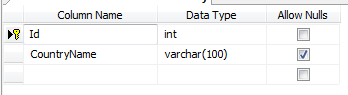
implement this example first design tables in your database as shown below :-
Add table name Country
Add some entries in country
Add table name State
add entry is state table
Add table name City
add some entries in City table
ON ASPX PAGE :-
<table>
<tr>
<td><label class="Label">
Country
</label>
</td>
<td><asp:DropDownList ID="ddCountryDrpdwn" CssClass="DropDown" runat="server" AutoPostBack="true"
OnSelectedIndexChanged="ddCountryDrpdwn_SelectedIndexChanged">
</asp:DropDownList>
<asp:RequiredFieldValidator ID="RFVCountry" runat="server" ControlToValidate="ddCountryDrpdwn"
Display="Dynamic" SetFocusOnError="true" ForeColor="Red" CssClass="failureNotification"
ErrorMessage="Select country." InitialValue="0" ToolTip="Select country." ValidationGroup="sbmitbtn"></asp:RequiredFieldValidator>
</td>
</tr>
<tr>
<td><label class="Label">
State
</label>
</td>
<td><asp:DropDownList ID="ddStateDrpdwn" CssClass="DropDown" runat="server" AutoPostBack="true"
OnSelectedIndexChanged="ddStateDrpdwn_SelectedIndexChanged">
</asp:DropDownList>
<asp:RequiredFieldValidator ID="RFVState" runat="server" ControlToValidate="ddStateDrpdwn"
Display="Dynamic" SetFocusOnError="true" ForeColor="Red" CssClass="failureNotification"
ErrorMessage="Select state." InitialValue="0" ToolTip="Select state." ValidationGroup="sbmitbtn"></asp:RequiredFieldValidator>
</td>
</tr>
<tr>
<td><label class="Label">
City
</label>
</td>
<td><asp:DropDownList ID="ddCityDrpdwn" CssClass="DropDown" runat="server" AutoPostBack="true"
OnSelectedIndexChanged="ddCityDrpdwn_SelectedIndexChanged">
</asp:DropDownList>
<asp:RequiredFieldValidator ID="RFVCity" runat="server" ControlToValidate="ddCityDrpdwn"
Display="Dynamic" SetFocusOnError="true" ForeColor="Red" CssClass="failureNotification"
ErrorMessage="Select city." InitialValue="0" ToolTip="Select city." ValidationGroup="sbmitbtn"></asp:RequiredFieldValidator>
</td>
</tr>
</table>
On CODE BEHIND ASPX.CS PAGE
using System;
using System.Collections.Generic;
using System.Linq;
using System.Web;
using System.Web.UI;
using System.Web.UI.WebControls;
using BusinessLayer;
using DataLayer;
using System.Data;
using System.Data.SqlTypes;
using System.Data.SqlClient;
using System.Drawing;
using System.Globalization;
using System.Text.RegularExpressions;
public void Page_Load(object sender, EventArgs e)
{
if (!IsPostBack)
{
Bindcountry();
}
}
//Function to Bind Counrty
protected void Bindcountry()
{
DS = BusinessLayer.Home.getcountry();
if (DS.Tables[0].Rows.Count > 0)
{
ddCountryDrpdwn.DataSource = DS;
ddCountryDrpdwn.DataTextField = "CountryName";
ddCountryDrpdwn.DataValueField = "Id";
ddCountryDrpdwn.DataBind();
ddCountryDrpdwn.Items.Insert(0, new ListItem("--Select--", "0"));
}
else if (DS.Tables[0].Rows.Count == 0)
{
ddCountryDrpdwn.DataSource = null;
ddCountryDrpdwn.DataBind();
}
}
//Function to Bind State
protected void Bindstate()
{
if (ddCountryDrpdwn.SelectedValue != "0")
{
int ctr = Convert.ToInt32(ddCountryDrpdwn.SelectedValue);
DS = BusinessLayer.Home.getstate(ctr);
if (DS.Tables[0].Rows.Count > 0)
{
ddStateDrpdwn.Focus();
ddStateDrpdwn.DataSource = DS;
ddStateDrpdwn.DataTextField = "StateName";
ddStateDrpdwn.DataValueField = "Id";
ddStateDrpdwn.DataBind();
ddStateDrpdwn.Items.Insert(0, new ListItem("--Select--", "0"));
}
else if (DS.Tables[0].Rows.Count == 0)
{
ddStateDrpdwn.DataSource = null;
ddStateDrpdwn.DataBind();
ddStateDrpdwn.Focus();
}
}
else
{
ddStateDrpdwn.Items.Insert(0, new ListItem("--Select--", "0"));
}
}
//Function to Bind City
protected void Bindcity()
{
if (ddStateDrpdwn.SelectedValue != "0")
{
int ctrr = Convert.ToInt32(ddStateDrpdwn.SelectedValue);
DS = BusinessLayer.Home.getcity(ctrr);
if (DS.Tables[0].Rows.Count > 0)
{
ddCityDrpdwn.Focus();
ddCityDrpdwn.DataSource = DS;
ddCityDrpdwn.DataTextField = "CityName";
ddCityDrpdwn.DataValueField = "Id";
ddCityDrpdwn.DataBind();
ddCityDrpdwn.Items.Insert(0, new ListItem("--Select--", "0"));
}
else if (DS.Tables[0].Rows.Count == 0)
{
ddCityDrpdwn.Items.Clear();
ddCityDrpdwn.DataSource = null;
ddCityDrpdwn.DataBind();
ddCityDrpdwn.Items.Insert(0, new ListItem("--Select--", "0"));
ddStateDrpdwn.Focus();
}
}
else
{
ddCityDrpdwn.Items.Insert(0, new ListItem("--Select--", "0"));
}
}
//On Country selected index change
protected void ddCountryDrpdwn_SelectedIndexChanged(object sender, EventArgs e)
{
if (ddCountryDrpdwn.SelectedValue == "0")
{
ddStateDrpdwn.DataSource = ddCityDrpdwn.DataSource = null;
ddStateDrpdwn.DataBind();
ddCityDrpdwn.DataBind();
ddStateDrpdwn.Items.Clear();
ddCityDrpdwn.Items.Clear();
ddStateDrpdwn.Items.Insert(0, new ListItem("--Select--", "0"));
ddCityDrpdwn.Items.Insert(0, new ListItem("--Select--", "0"));
ddCountryDrpdwn.Focus();
txtLandlinecode.Text = "";
}
else
{
Bindstate();
}
}
//On State selected index change
protected void ddStateDrpdwn_SelectedIndexChanged(object sender, EventArgs e)
{
if (ddStateDrpdwn.SelectedValue == "0")
{
ddCityDrpdwn.DataSource = null;
ddCityDrpdwn.DataBind();
ddCityDrpdwn.Items.Clear();
ddCityDrpdwn.Items.Insert(0, new ListItem("--Select--", "0"));
ddStateDrpdwn.Focus();
txtLandlinecode.Text = "";
}
else
{
Bindcity();
}
}
ON BUSSINESSLAYER ADD CODE :-
public static DataSet getcountry()
{
return DataLayer.Home.getcountry();
}
public static DataSet getstate(int ctr)
{
return DataLayer.Home.getstate(ctr);
}
public static DataSet getcity(int ctrr)
{
return DataLayer.Home.getcity(ctrr);
}
ON DATALAYER ADD CODE :-
//Get state
public static DataSet getstate(int ctr)
{
List<SqlParameter> paralist = new List<SqlParameter>();
SqlParameter para = new SqlParameter("@CountryName", ctr);
paralist.Add(para);
return DataLayer.Data.GetDataSet("usp_selectstate", paralist);
}
//Get City
public static DataSet getcity(int ctrr)
{
List<SqlParameter> paralist = new List<SqlParameter>();
SqlParameter para = new SqlParameter("@StateName", ctrr);
paralist.Add(para);
return DataLayer.Data.GetDataSet("usp_selectcity", paralist);
}
//for country bind from database
public static DataSet getcountry()
{
return DataLayer.Data.GetDataByQery("select Id,CountryName from Country");
}
ON YOUR DATA CLASS ADD CODE :-
static string strConn = ConfigurationManager.AppSettings["DBConn"].ToString();
private static SqlConnection DBConn = null;
public static DataSet GetDataByQery(string Query)
{
SqlConnection cn = Data.Connection;
if (cn.State != ConnectionState.Open)
{
cn.Open();
}
SqlCommand cmd = new SqlCommand();
cmd.CommandText = Query;
cmd.CommandType = CommandType.Text;
cmd.Connection = cn;
DataSet ds = new DataSet();
SqlDataAdapter da = new SqlDataAdapter();
da.SelectCommand = cmd;
da.Fill(ds);
cn.Close();
return ds;
}
public static DataSet GetDataSet(string SPName, List<SqlParameter> Parameters)
{
using (SqlConnection con = Connection)
{
using (SqlCommand cmd = new SqlCommand())
{
cmd.CommandText = SPName;
cmd.CommandType = System.Data.CommandType.StoredProcedure;
cmd.Connection = con;
if (Parameters != null)
{
foreach (SqlParameter parameter in Parameters)
{
cmd.Parameters.Add(parameter);
}
}
if (con.State != ConnectionState.Open)
{
con.Open();
}
DataSet ds = new DataSet();
SqlDataAdapter da = new SqlDataAdapter();
da.SelectCommand = cmd;
da.Fill(ds);
con.Close();
return ds;
}
}
}
IN YOUR WEBCONFIG ADD CODE :-
<appsetting>
<add key="DBConn" value="Data Source=XXXXXX; Initial Catalog=OskarDB; User ID=user; Password=pass;"/>
<appsetting>
STORED PROCEDURE :-
For selecting State :-
ALTER PROCEDURE [dbo].[usp_selectstate]
@CountryName int
As
BEGIN
Select StateName,Id From State
WHERE fkCountryId=@CountryName
ORDER BY [StateName]ASC
END
For selecting City :-
ALTER PROCEDURE [dbo].[usp_selectcity]
@StateName int
As
BEGIN
Select CityName,Id From City
WHERE fkStateId = @StateName
ORDER BY [CityName]ASC
END
By following this way you can bind dependent dropdown list in 3 Tier .