Showing posts with label GridView. Show all posts

Tuesday, December 10, 2013

Grid View Progress Bar Using Jquery

Grid View Progress Bar Using Jquery.

Hi Friends,
Here i will explain you how to implement Grid View Progress Bar Using Jquery.

ON ASPX  PAGE :-
Paste below Script in your head tag.

<script type="text/javascript" src="http://code.jquery.com/jquery-1.8.2.js"></script>  
    <script type="text/javascript">
        $(function () {
            $('#btnClick').click(function () {
                $('#Div').fadeTo('slow', .2);
                $('#Div').append('<img src="../Images/animated.gif" style="background-color:Aqua;position:fixed; top:20%; left:16%;"/></div>');
                setTimeout(function () { GetData() }, 800)
            })
        });
        function GetData() {
            $.ajax({
                type: "POST",
                contentType: "application/json; charset=utf-8",
                url: "JqueryProgressBar.aspx/filldatagrid",
                data: "{}",
                dataType: "json",
                success: function (data) {
                    var theHtml = data.d;
                    $('#Griddiv').html(theHtml)
                    $('#Div').html("");
                },
                error: function (result) {
                    alert("Error");
                }
            });
        }
    </script>


Paste below code in  form tag.

<div id="Div">
    </div>
    <input type="button" id="btnClick" value="GridView" />
    <div id="Griddiv">
    </div>


ON CODE BEHIND ASPX.CS :-

[WebMethod]
        public static string filldatagrid()
        {
            GridView gv = new GridView();
            System.IO.StringWriter stringWriter = new System.IO.StringWriter();
            HtmlTextWriter htmlWriter = new HtmlTextWriter(stringWriter);
            DataSet ds = manager.GetRecords();//Function for getting records
            DataTable dt = ds.Tables[0];
            gv.DataSource = dt;
            gv.DataBind();
            gv.RenderControl(htmlWriter);
            return stringWriter.ToString();
        }


CREATE A STORED PROCEDURE :-
CREATE PROCEDURE [dbo].[usp_SelectRegistration]
   
AS
BEGIN
    SELECT Pid ,FullName,CONVERT(varchar(30),DOB,101) AS DOB,Gender
    FROM form Order by Pid
END

ON BUSINESS LAYER MANAGER CLASS :- On your bussiness layer paste code below
 public static DataSet GetRecords()
        {

            return BusinessLayer.Dataaccess.DataAccess.GetData("usp_SelectRegistration", null);
        }
//usp_SelectRegistration is stored procedure name //DataAccess is class in dataaccess layer //GetData is function for getting data using connection string
ON DATAACCESS LAYER :-
public static DataSet GetData(string SPName, List<SqlParameter> Parameters)
        {
            using (SqlConnection con = new SqlConnection(System.Configuration.ConfigurationManager.ConnectionStrings["ApplicationServices"].ConnectionString))
            {
                using (SqlCommand cmd = new SqlCommand())
                {
                    cmd.CommandText = SPName;
                    cmd.CommandType = System.Data.CommandType.StoredProcedure;
                    cmd.Connection = con;

                    if (Parameters != null)
                    {
                        foreach (SqlParameter parameter in Parameters)
                        {
                            cmd.Parameters.Add(parameter);
                        }
                    }
                    con.Open();
                    DataSet ds = new DataSet();
                    SqlDataAdapter da = new SqlDataAdapter();
                    da.SelectCommand = cmd;
                    da.Fill(ds);
                    con.Close();
                    return ds;
                }
            }
        }

ON WEB.CONFIG :- Now add connection string in your webconfig,add code below..
<connectionStrings>
    <add name="ApplicationServices" connectionString="Data Source=10.1.1.1;Initial Catalog=DailyTaskoskar;Persist Security Info=True;User ID=Username;Password=Password" providerName="System.Data.SqlClient"/>
   
  </connectionStrings>


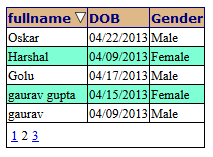
GridView Paging And Sorting And Showing Ascending And Descending Sorting Arrow Image with Header text In ASP.NET

Grid View Paging And Sorting And Showing Ascending And Descending Sorting Arrow Image with Header text  In ASP.NET  

Hi Friends,

Here i will explain you how to implement Grid View Paging And Sorting And Showing Ascending And Descending Sorting Arrow Image with Header text  In ASP.NET .

First of all create a table name it form 


Add some entries in form table


ON ASPX PAGE :-
In between header paste

<style type="text/css">
        th a
        {
            text-decoration: none;
        }
        .PagerControl
        {
            text-decoration: none;
        }
    </style>


In between form tage paste code below

<asp:GridView ID="GridView1" runat="server" AutoGenerateColumns="false"
        AllowPaging="true" PageSize="5" OnSorting="GridView1_Sorting" OnRowDataBound="GridView1_RowDataBound"
        AllowSorting="true" OnPageIndexChanging="GridView1_PageIndexChanging" HeaderStyle-Font-Names="Verdana"
        Font-Size="Small" HeaderStyle-HorizontalAlign="Left" HeaderStyle-Font-Underline="false"
        HeaderStyle-BackColor="BurlyWood" HeaderStyle-ForeColor="Navy">
        <AlternatingRowStyle BackColor="Aquamarine" />
        <PagerStyle CssClass="PagerControl"/>
        <Columns>
            <asp:BoundField DataField="fullname" HeaderText="fullname" SortExpression="fullname" />
            <asp:BoundField DataField="DOB" HeaderText="DOB" SortExpression="DOB" />
            <asp:BoundField DataField="Gender" HeaderText="Gender" SortExpression="Gender" />
                    </Columns>
    </asp:GridView>


ON CODE BEHIND ASPX.CS :-

Add namespaces

using System;
using System.Collections.Generic;
using System.Collections.Specialized;
using System.Linq;
using System.Web;
using System.Web.UI;
using System.Web.UI.WebControls;
using System.Data;
using System.Data.SqlClient;
using System.Data.SqlTypes;
using BusinessLayer.Entity;
using BusinessLayer.Manager;
using BusinessLayer.Dataaccess;
using System.Drawing;
using System.Text;
using System.IO;
using System.Drawing.Imaging;


# region Sorting

         public string sortingOrder
        {
            get
            {
                if (ViewState["sortingOrder"] == null)
                {
                    ViewState["sortingOrder"] = "desc";
                }
                return ViewState["sortingOrder"].ToString();
            }
            set
            {
                ViewState["sortingOrder"] = value;
            }

        }

        public string SortColumn
        {
            get
            {
                return (ViewState["SortColumn"] == null ? "fullname" : ViewState["SortColumn"].ToString());
            }
            set
            {
                ViewState["SortColumn"] = value;
            }
        }

         public SortDirection sortDirection
        {
            get
            {
                if (ViewState["sortDirection"] == null)
                {
                    ViewState["sortDirection"] = SortDirection.Ascending;
                }
                return (SortDirection)ViewState["sortDirection"];//.Descending;
            }
            set
            {
                ViewState["sortDirection"] = value;
            }
        }

        #endregion

        protected void Page_Load(object sender, EventArgs e)
        {
            if (!IsPostBack)
            {
                fillDataGrid();
            }
        }
        public void fillDataGrid()
        {     
            DataSet ds = manager.GetRecords();//function for getting records from database written on bussiness layer manager.
            DataTable dt = ds.Tables[0];
            if (ds.Tables[0].Rows.Count == 0)
            {
                GridView1.DataSource = null;
                GridView1.DataBind();
            }
            else
            {
                DataView dv1 = new DataView(dt);
                dv1.Sort = SortColumn + " " + sortingOrder;
                GridView1.DataSource = dv1;
                GridView1.DataBind();
                GridView1.HeaderRow.Font.Underline = false;
            }
        }       

        protected void GridView1_Sorting(object sender, GridViewSortEventArgs e)
        {

            if (sortDirection == SortDirection.Descending)
            {
                sortDirection = SortDirection.Ascending;
            }
            else
            {
                sortDirection = SortDirection.Descending;
            }
            sortingOrder = (sortDirection == SortDirection.Descending) ? "asc" : "desc";
            SortColumn = e.SortExpression;
            fillDataGrid();
        }

        protected void GridView1_RowDataBound(object sender, GridViewRowEventArgs e)
        {
            string AscGvDeleteRecdords = @" <img src='../Images/white-triangle-up.png' Width='11px' Height='11px'  title='Ascending' />";
            string DesGvDeleteRecdords = @" <img src='../Images/white-triangle-down.png'Width='11px' Height='11px' title='Descendng' />";
            if (e.Row.RowType == DataControlRowType.Header)
            {
                foreach (TableCell cell in e.Row.Cells)
                {
                    if (cell.HasControls())
                    {
                        LinkButton lbl = (LinkButton)cell.Controls[0];
                        if (lbl.Text == SortColumn)
                        {
                            if (sortingOrder == "asc")
                            {
                                lbl.Text += AscGvDeleteRecdords;
                            }
                            else
                            {
                                lbl.Text += DesGvDeleteRecdords;
                            }
                        }
                    }
                }
            }
        }

        protected void GridView1_PageIndexChanging(object sender, GridViewPageEventArgs e)
        {
            GridView1.PageIndex = e.NewPageIndex;
            fillDataGrid();
        }


CREATE A STORED PROCEDURE :-

CREATE PROCEDURE [dbo].[usp_SelectRegistration]
   
AS
BEGIN
    SELECT Pid ,FullName,CONVERT(varchar(30),DOB,101) AS DOB,Gender
    FROM form Order by Pid
END


ON BUSINESS LAYER MANAGER CLASS :-
On your bussiness layer paste code below

 public static DataSet GetRecords()
        {

            return BusinessLayer.Dataaccess.DataAccess.GetData("usp_SelectRegistration", null);
        }

//usp_SelectRegistration is stored procedure name
//DataAccess is class in dataaccess layer
//GetData is function for getting data using connection string

ON DATAACCESS LAYER :-

public static DataSet GetData(string SPName, List<SqlParameter> Parameters)
        {
            using (SqlConnection con = new SqlConnection(System.Configuration.ConfigurationManager.ConnectionStrings["ApplicationServices"].ConnectionString))
            {
                using (SqlCommand cmd = new SqlCommand())
                {
                    cmd.CommandText = SPName;
                    cmd.CommandType = System.Data.CommandType.StoredProcedure;
                    cmd.Connection = con;

                    if (Parameters != null)
                    {
                        foreach (SqlParameter parameter in Parameters)
                        {
                            cmd.Parameters.Add(parameter);
                        }
                    }
                    con.Open();
                    DataSet ds = new DataSet();
                    SqlDataAdapter da = new SqlDataAdapter();
                    da.SelectCommand = cmd;
                    da.Fill(ds);
                    con.Close();
                    return ds;
                }
            }
        }


ON WEB.CONFIG :-
Now add connection string in your webconfig,add code below..

<connectionStrings>
    <add name="ApplicationServices" connectionString="Data Source=10.1.1.1;Initial Catalog=DailyTaskoskar;Persist Security Info=True;User ID=Username;Password=Password" providerName="System.Data.SqlClient"/>
   
  </connectionStrings>


Friday, December 6, 2013

Export gridview data to Excel in asp.net C# .

Hi Friends,

Here I will explain how to export gridview data to Excel using asp.net in c#.I have one gridview that has filled with user details now I need to export gridview data toexcel . To implement this functionality first we need to design aspx page like this


ON ASPX PAGE :-

<div>
    <asp:ImageButton ID="imgbtnExport" runat="server" BorderColor="White" ToolTip="Export Data" ImageUrl="~/Excel-icon.png"
                                        OnClick="imgbtnExport_Click" />
    <table>
    <tr>
                <td colspan="2">
                    <asp:GridView ID="gvRecords" AutoGenerateColumns="False" runat="server" >
                        <Columns>

<asp:BoundField DataField="Id" HeaderText="Id" HeaderStyle-BackColor="Orange" />
                                                        <asp:BoundField DataField="fullname" HeaderText="Full Name" HeaderStyle-BackColor="Orange" />
                            <asp:BoundField DataField="DOB" HeaderText="DOB" HeaderStyle-BackColor="Orange"/>
                            <asp:BoundField DataField="Gender" HeaderText="Gender" HeaderStyle-BackColor="Orange"/>
                            <asp:BoundField DataField="MobileNo" HeaderText="Mobile No." HeaderStyle-BackColor="Orange"/>
                            <asp:BoundField DataField="Salary" HeaderText="Salary" HeaderStyle-BackColor="Orange"/>
                            <asp:BoundField DataField="Isactive" HeaderText="Isactive" HeaderStyle-BackColor="Orange"/>
                            <asp:TemplateField HeaderText="Remove" HeaderStyle-BackColor="Orange">
                                <ItemTemplate>
                                    <asp:LinkButton ID="Label2" runat="server" >Remove</asp:LinkButton>
                                </ItemTemplate>
                            </asp:TemplateField>
                        </Columns>
                    </asp:GridView>
                </td>
            </tr>
            </table>
    </div>


ON CODE BEHIND ASPX.CS :-

First of all take your grid view data in viewstate like below..

public void fillDataGrid()
        {
            DataSet ds = new DataSet();
            ds = manager.GetRecords();           
            gvRecords.DataSource = ds.Tables[0];
            ViewState["Export"] = ds.Tables[0];
            gvRecords.DataBind();
        }


protected void imgbtnExport_Click(object sender, ImageClickEventArgs e) // Image Button To Export Grid Recod
        {
            string date = DateTime.Now.ToString("MM-dd-yyyy");

            Response.Clear();
            Response.Buffer = true;

            Response.AddHeader("content-disposition", "attachment;filename=ExcelData.xls");
            Response.Charset = "";

            Response.ContentType = "application/vnd.ms-excel";
            StringWriter sw = new StringWriter();
            HtmlTextWriter hw = new HtmlTextWriter(sw);

            gvRecords.AllowPaging = false;
            DataTable ds = ViewState["Export"] as DataTable;

            DataGrid dg = new DataGrid();
            dg.HeaderStyle.ForeColor = System.Drawing.Color.Blue;
            dg.DataSource = ds;
            dg.DataBind();
            dg.RenderControl(hw);

            string style = @"<style> .textmode { mso-number-format:\@; } </style>";
            Response.Write(style);
            Response.Output.Write(sw.ToString());
            Response.Flush();
            Response.End();
        }


Now you can export your grid view data on excel sheet.


Save it and then open.